Grouping raster or vector data by attribute in order to SIMPLIFY the OVERLAY process
Need to ask 2 questions first;
“With what complexity?”
then “How do I assign values?”
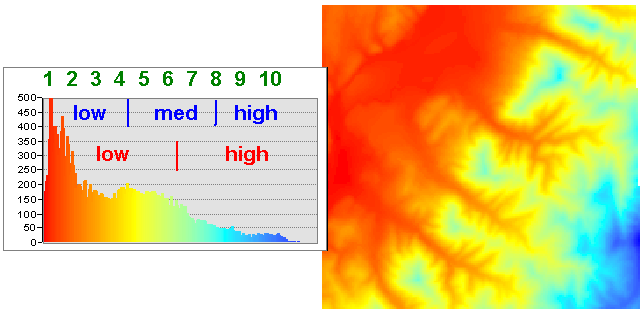
In order of Increasing Complexity, simplification of continuous layers yields discrete categorical layers
- binary layers (yes/no, on/off, 1/0, suitable/unsuitable)
- multiple category layers( yes/maybe/no, on/bordering/off, highly suitable/less suitable/not suitable)
- “index” layers (1, 2, 3, 4, 5 or 1, 2, 3,…10)
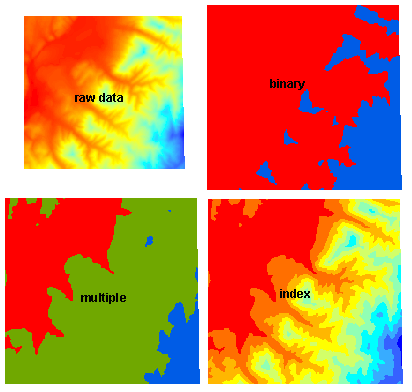
How does one divide up a continuous variable into discrete categories?
Calculations (Boolean operations and math) or Reclassification
Let’s try them on an elevation dataset.
(open overlayQ project from your …GIS\demo\overlay folder) and zoom to the elevation data (“demo_DEM”), which is a continuous, floating point dataset.
- Raster Calculator Map Algebra in Q
- Let’s first visualize the results of the simplification in the Layer Styling Panel (without changing the data)
- open the layer styling panel for the demo_DEM layer
- you can see the min/max values at the top
- for “Interpolation” above the colors, choose “discrete”
- for “Mode” below the colors, choose “Equal Interval”
- for Binary choose “2” classes, for “multiple” choose “3” classes and for “index” choose 10 classes
- To actually make a new raster layer with these simplified categories, we will need to use a geoprocessing tool, activate the processing plugin and search for Raster Calculator
“IF” statements (plus “if… then…else”) in traditional programming- BINARY DISCRETE CATEGORIES : a simple “If” statement has this syntax
if(conditional statement, TrueValue or TrueLayer, FalseValue or FalseLayer) . .or for our demo elevation layer
if ( "demo_DEM@1" > 500, 1 ,0))
Make your own or copy and paste this into the Expression box - MULTIPLE DISCRETE CATEGORIES: a “nested if” statement (where the “no” for the first conditional sends you to another conditional test, or if then)
if("demo_DEM@1" > 600, 2, if("demo_DEM@1" > 300, 1, 0))
- BINARY DISCRETE CATEGORIES : a simple “If” statement has this syntax
- Using arithmetic (works for Binary, Multiple, or Index Category Layers)
- Determine the range and divide by the number of categories required
index category width = ([range]/[# of divisions needed])
for our elevation example; 240 to 830 = 590 / 10 classes = 59 m per index level - subtract the minimum from each cell or attribute value to set the origin of the index at the lowest value
("demo_DEM@1" - 240)/59
which returns a floating point raster from 0 to 10; to find the next highest integer (or lowest, depending if you want the index values to start at 1 or 0) use the Round Raster geoprocessing tool and choose “round up” to get values 1-10 or “round down” to get 0-9 indices. - Alternately, if you use a different version of “raster calculator”–the GDAL/Raster Miscellaneous/Raster calculator, you can do the indexing and rounding in one step setting demo_DEM to input layer “A” and entering in the “ceiling” equation (the next highest integer value)
ceil((A-240)/59)
and setting the output file type to 16 bit integer to get 1-10 values
or “floor” (the next lowest integer value)
floor((A-240)/59)
to get 0-9 values in the output map.
(For you programmers, the GDAL version has access to functions as using gdalnumeric syntax or any numpy array function.)But what if you want the same number of cells in each category? (called “quantile” or “equal area” distribution). We will have to reclassify our data (next page)
- Determine the range and divide by the number of categories required
- Let’s first visualize the results of the simplification in the Layer Styling Panel (without changing the data)
- Raster Calculator Map Algebra in ArcGIS
- “IF” statements (plus “if… then…else”) in traditional programming
- BINARY DISCRETE CATEGORIES : a simple “Con” statement has this syntax
Con (conditional statement, yesGrid, noGrid) . . . . .see help — it means “conditional testing”
Con("elev" > 500, 1, 0)copy and paste this into the Spatial Analyst Raster Calculator - MULTIPLE DISCRETE CATEGORIES: a “nested” .Con statement (where the “no” for the first conditional sends you to another conditional test)
Con("elev" > 600, 2, Con("elev" > 300, 1, 0))
- BINARY DISCRETE CATEGORIES : a simple “Con” statement has this syntax
- Using arithmetic (works for Binary, Multiple, or Index Category Layers)
- Determine the range and divide by the number of categories required
index category width = ([range]/[# of divisions needed])
for our elevation example; 240 to 830 = 590 / 10 classes = 59 m per index level - subtract the minimum from each cell or attribute value to set the origin of the index at the lowest value
("elev" - 240) / 59 - find the next lowest integer (or highest, depending if you want the index values to start at 0 or 1) using the Round functions (up or down)
RoundDown((“elev” – 240) / 59) however to get it into an INTEGER raster, you must use
Int(RoundDown((“elev” – 240) / 59))
which yields 10 categories from 0 to 9
or
Int(RoundUp((“elev” – 240) / 59))
which yields 10 categories from 1 to 10
But what if you want the same number of cells in each category? (called “quantile” or “equal area”)
- Determine the range and divide by the number of categories required
- “IF” statements (plus “if… then…else”) in traditional programming
- Reclassify geoprocessing in Q is on the next page