Metadata are important for the users of your GIS layers and maps. We will practice paying attention to metadata in the sense that your metadata will be bare bones compared to those made by government agencies and private suppliers of data (e.g., US Forest Service Timber Harvests, available online through a REST server here).
Metadata are primarily important for data stored as geopackages, shapefiles, geoTIFFs and many other formats, but metadata are also important for map presentations of those data. Any layer that you create or alter needs metadata. If the data from which your layer is based already has metadata, you can simply copy and alter those metadata. For new layers, you have to input the important pieces.
Metadata takes either good logging or a better memory than i have! A good habit to get into is to open a document like word or google docs to record your steps (breadcrumbs) as you make your way through a GIS project. Add source locations, expressions & equations, geoprocessing steps as you do them. When you’re done, you can copy and paste what you need into the metadata. Does your geoprocessing tool leave any breadcrumbs (like the reclass table? copy and paste that information or file location into the breadcrumbs file.
Data layer metadata (in ArcGIS Pro)
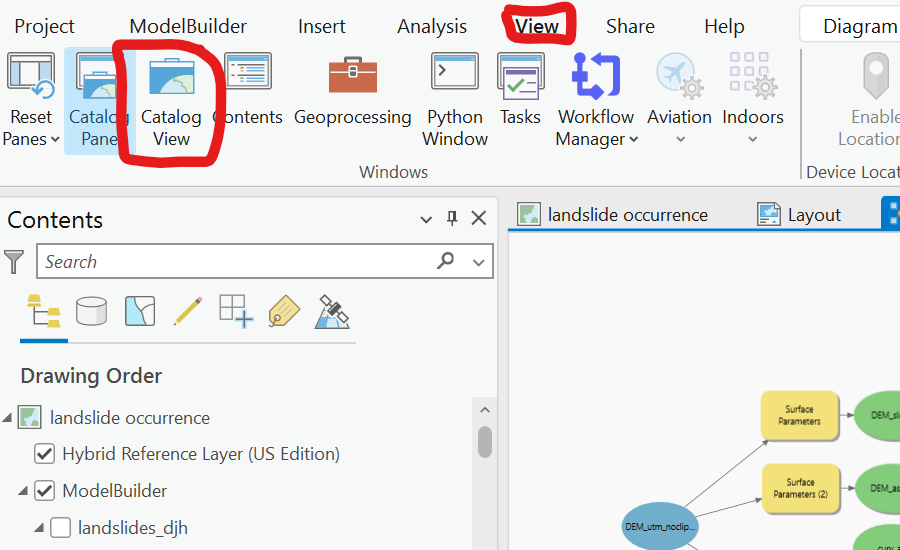
Open the Catalog View (not the catalog pane)
Navigate the layer on which you need to make metadata. Choose the edit button.
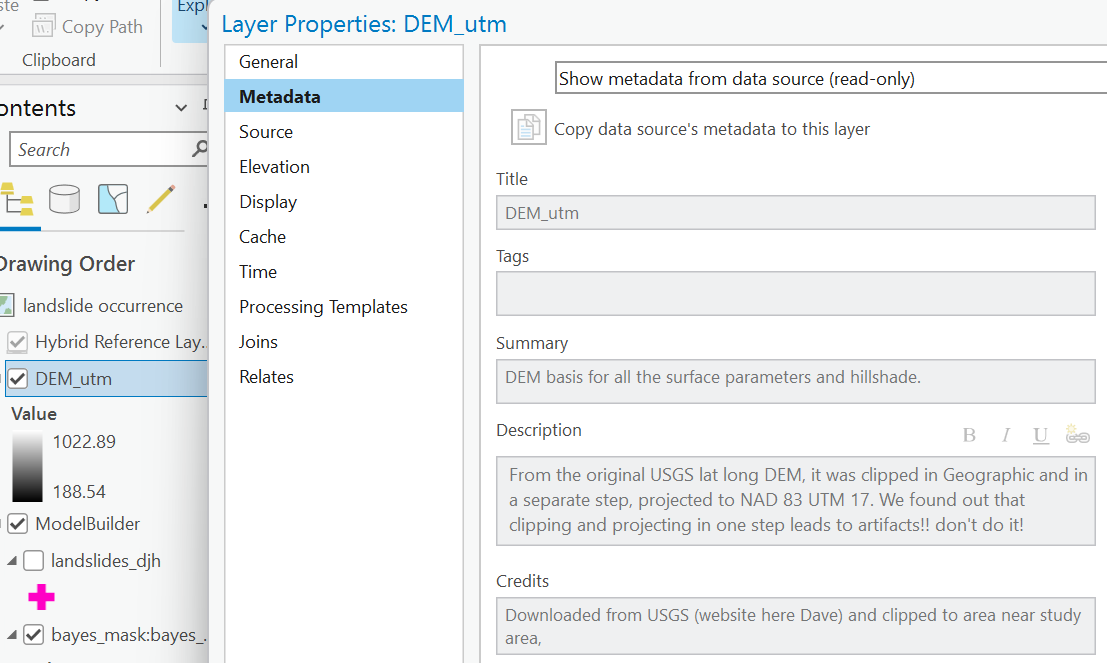
You only need to put information into a few boxes. See below for WHAT to put in there. Referencing models or other documents is fine. Short lists are better than lots of words.
When you use the layer properties box, you’ll see your metadata are in the right place (the data, not on just that presentation of it on this particular map).
Map metadata can be entered the same way from the catalog view, or from the map properties box.
Data layer metadata (in Q)
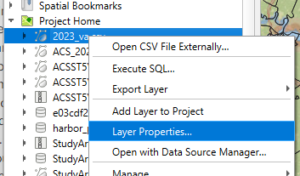
access the metadata panel within the properties box of the layer in your project,or the “layer properties” of the data in the browser panel.
You can put all the information in just three place of the first tab and I’ll be ok with it. Notice how many other tabs and how much information there SHOULD BE in proper metadata. Those three tabs and what is needed are illustrated here for a table imported into the project (not yet spatial).
What layers require metadata?
Original data that you copy, import, or download, after you get them ready to ingested into your GIS.
Important data layers that serve as the basis for your analysis, once they arrive as spatial or tabular data in your GIS project.
Final layers that are produced from these inputs, if you follow a geoprocessing trail.
Intermediate data layers in the chain do not require metadata as long as all the steps are on the final. For example, in this example.
Map Metadata (for both Q and Arc).
When you put data on a map canvas in Q or a map in ArcGIS, you’re making decision about how to display those data.
you might be projecting it on the fly
you are choosing many aspects of the display
symbology, including classification parameters, things like equal interval vs quantile,
what defines the features shown on the map (and which are invisible)
intent?
Some of the metadata should be on the map itself
the cartographer
the projection & datum
the source of raw data used
In Q, these metadata should be part of the project file, setting them starts with the Project/Properties…. menu
make sure you hit “apply” when you’re done so it gets saved!
In ArcGIS, the map properties box is fine, so is using the Catalog view!